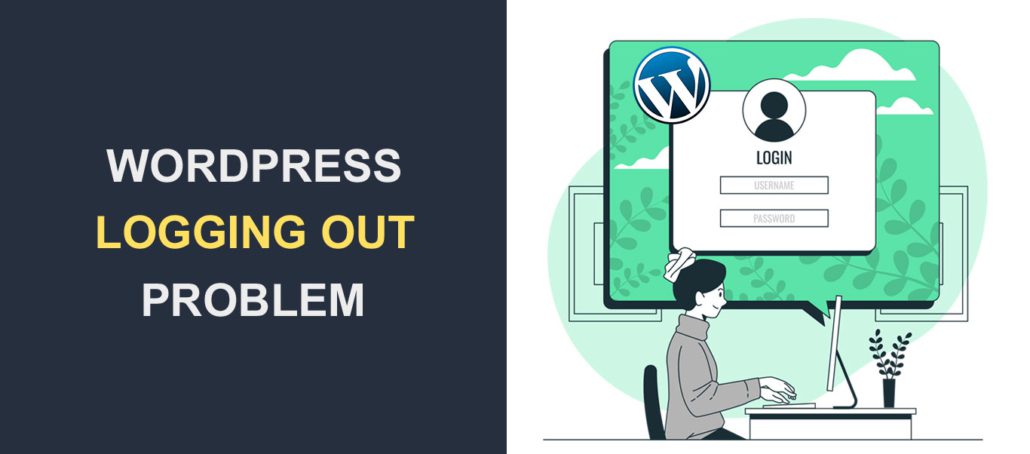
The “WordPress Keeps Logging Me Out” issue refers to a situation where a user is continuously logged out of their WordPress dashboard or website, even after successfully logging in.
This can be a frustrating experience for WordPress administrators and users alike. Several factors can cause this issue, including:
Table of Contents
Common Causes of “WordPress Keeps Logging Me Out”:
- Corrupted Cookies: Corrupted or expired cookies can cause login issues in WordPress.
- Incorrect
wp-config.phpSettings: Incorrect settings in thewp-config.phpfile, such as theWP_HOMEandWP_SITEURL, can lead to login problems. - Low PHP Memory Limit: A low PHP memory limit can cause various issues in WordPress, including login problems.
- Faulty Plugins: A malfunctioning or incompatible plugin can interfere with the login process.
- Theme Issues: Some themes may have code conflicts that prevent users from staying logged in.
- Corrupted
.htaccessFile: An incorrectly configured or corrupted.htaccessfile can cause login issues. - WordPress Database Issues: Problems with the WordPress database can also lead to login problems.
Experiencing the “WordPress Keeps Logging Me Out” issue can be frustrating. There are several potential causes for this problem, and you can try the following solutions to fix it:
1. Clear Browser Cookies and Cache
Sometimes, corrupted cookies or cache in your web browser can cause login issues. Clearing them might resolve the problem.
For Chrome:
- Go to
Settings>Privacy and security>Clear browsing data. - Select
Cookies and other site dataandCached images and files, then clickClear data.
For Firefox:
- Go to
Options>Privacy & Security. - Under
Cookies and Site Data, clickClear Data.
For Safari:
- Go to
Safari>Clear History.... - Choose
All historyand clickClear History.
2. Check the wp-config.php File
Incorrect settings in the wp-config.php file can cause login issues. Make sure the following lines are present and correctly configured:
define('WP_HOME','http://yourdomain.com');
define('WP_SITEURL','http://yourdomain.com');
Replace http://yourdomain.com with your actual domain name.
3. Increase PHP Memory Limit
A low PHP memory limit can sometimes cause login issues. You can increase the PHP memory limit by adding the following line to your wp-config.php file:
define('WP_MEMORY_LIMIT', '256M');4. Deactivate Plugins
A faulty plugin could be causing the login issue. You can deactivate all plugins to see if that resolves the problem.
To deactivate all plugins via FTP:
- Connect to your website using an FTP client.
- Navigate to the
wp-contentfolder. - Rename the
pluginsfolder toplugins_old. - Try logging in to WordPress. If successful, one of the plugins was causing the issue.
To deactivate all plugins via cPanel:
- Log in to your cPanel.
- Navigate to
File Manager. - Go to the
wp-contentfolder. - Rename the
pluginsfolder toplugins_old. - Try logging in to WordPress.
5. Switch to a Default Theme
Your current theme could be causing the issue. Switching to a default WordPress theme can help identify if the theme is the problem.
To switch to a default theme via FTP:
- Connect to your website using an FTP client.
- Navigate to the
wp-content/themesfolder. - Rename your current theme’s folder.
- Try logging in to WordPress.
To switch to a default theme via cPanel:
- Log in to your cPanel.
- Navigate to
File Manager. - Go to the
wp-content/themesfolder. - Rename your current theme’s folder.
- Try logging in to WordPress.
6. Repair WordPress Database
Sometimes, the issue might be with the WordPress database. You can repair it using the following steps:
Using cPanel:
- Log in to your cPanel.
- Navigate to
phpMyAdmin. - Select your WordPress database from the left sidebar.
- Click on the
Check Allcheckbox. - From the dropdown menu, select
Repair table.
7. Check and Reset .htaccess File
Corrupted .htaccess file can also cause login issues. You can check and reset the .htaccess file by following these steps:
Using cPanel:
- Log in to your cPanel.
- Navigate to
File Manager. - Locate the
.htaccessfile in the root directory of your WordPress installation. - Rename it to
.htaccess_old. - Log in to your WordPress dashboard. WordPress will generate a new
.htaccessfile.
Final Thoughts
After trying these solutions, if you are still facing the issue, it could be a more complex problem related to server configurations or other WordPress settings. In such cases, you may need to contact your hosting provider or a WordPress expert for further assistance.