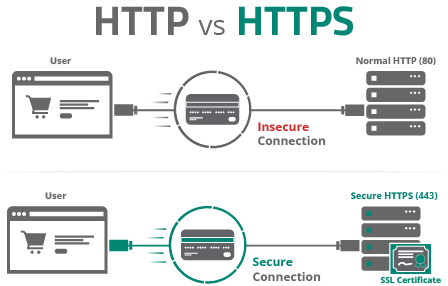
SSL (Secure Socket Layer) certificates are essential for securing websites and ensuring data transferred between the user’s browser and the server is encrypted.
When a website has an SSL certificate installed correctly, users will see a padlock icon in the address bar, indicating a secure connection. However, if there’s an issue with the SSL certificate or the way it’s configured, users may encounter a “Your connection is not private” error message when trying to access the site.
This error can deter users from continuing to the website, potentially harming a website’s reputation and traffic.
cPanel is a popular web hosting control panel that allows website owners to manage their websites, domains, and server configurations easily. Setting up an SSL certificate in cPanel is a relatively straightforward process, especially with the built-in SSL/TLS Manager feature.
Here’s a guide to understanding and resolving the “Your connection is not private” error related to SSL certificates:
Table of Contents
Why Does the Error Occur?
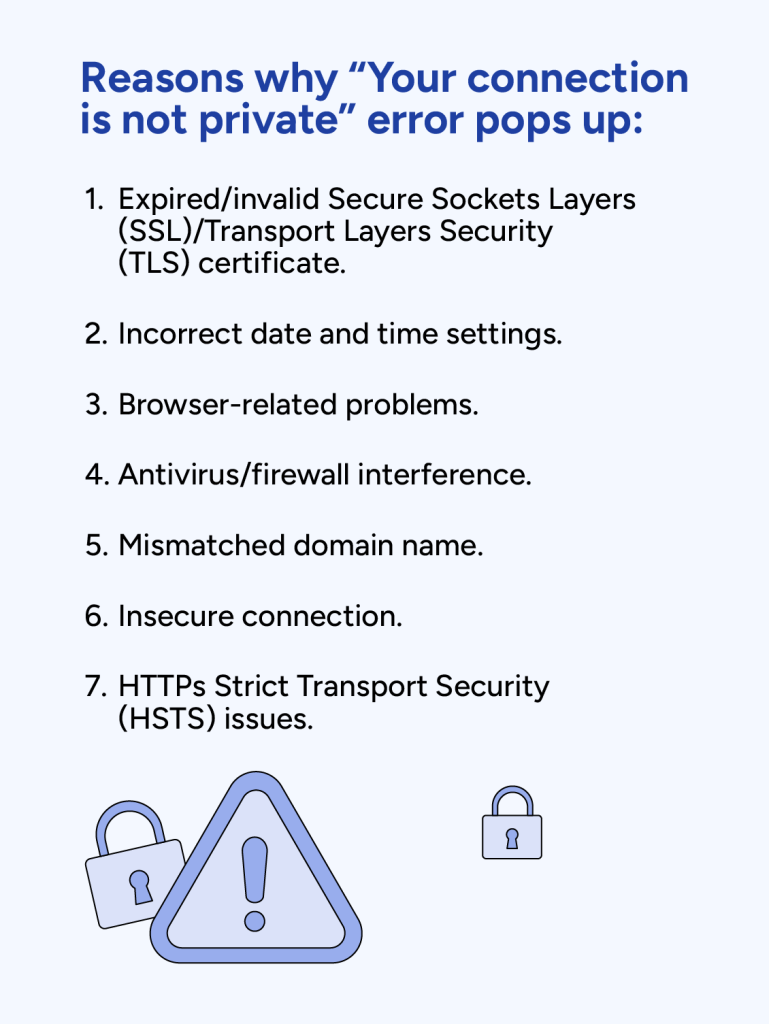
- Expired SSL Certificate: SSL certificates have an expiration date. If the certificate is not renewed before it expires, users will encounter this error.
- Mismatched Domain Name: The common name (CN) or subject alternative name (SAN) on the SSL certificate doesn’t match the domain of the website.
- Incorrectly Configured SSL Certificate: Improper installation or configuration of the SSL certificate can lead to this error.
- Untrusted Certificate Authority (CA): The SSL certificate is issued by an untrusted or unknown certificate authority.
- System Date and Time Misconfiguration: If the date and time settings on the user’s device are incorrect, it can cause this error.
How to Fix the Error
For Website Owners:
- Check Certificate Expiry:
- Renew the SSL certificate before it expires.
- Verify Certificate Installation:
- Ensure that the SSL certificate is correctly installed on your server.
- Correct Certificate Mismatch:
- Make sure the CN or SAN on the SSL certificate matches the website’s domain.
- Trustworthy Certificate Authority:
- Use SSL certificates from reputable CAs like DigiCert, Comodo, Let’s Encrypt, etc.
- Correct Date and Time Settings:
- Make sure the server’s date and time settings are correct.
For Website Visitors:
- Check Date and Time Settings:
- Ensure your device’s date and time settings are correct.
- Proceed with Caution:
- If you trust the website and understand the risks, you can proceed to the website by clicking on the advanced options and proceeding.
Common Fixes:
- Renew or Reinstall SSL Certificate:
- If the certificate has expired, renew it. If it’s improperly installed, reinstall it.
- Update System Date and Time:
- Ensure the date, time, and timezone settings on your computer are correct.
- Clear Browser Cache:
- Sometimes, clearing the browser cache and cookies can resolve the error.
- Use Another Browser or Device:
- Try accessing the website using a different browser or device to see if the error persists.
- Manually Proceed (Not Recommended):
- If you’re certain about the website’s legitimacy, you can proceed by clicking on “Advanced” or “Details” and then “Proceed to [website name] (unsafe)”.
How to Install an SSL Certificate:
- Purchase or Obtain an SSL Certificate:
- Buy an SSL certificate from a trusted CA or use a free one like Let’s Encrypt.
- Generate CSR (Certificate Signing Request):
- Create a CSR on your server where the website is hosted.
- Submit CSR to CA:
- Submit the CSR to the CA to obtain the SSL certificate.
- Install the SSL Certificate:
- Install the SSL certificate on your server as per the instructions provided by the CA or your hosting provider.
Conclusion
Ensuring your website has a properly configured SSL certificate is crucial for both security and user trust. Addressing and resolving the “Your connection is not private” error promptly can help maintain your website’s reputation and prevent potential security risks. If you’re unfamiliar with SSL certificates or face challenges resolving the error, it’s advisable to consult with your web hosting provider or a professional web developer to assist you in resolving the issue.