DNS (Domain Name System) is a fundamental facilitator of several networking technologies such as mail servers, Internet browsing, and streaming services among others.
It works on a special computer called a DNS server – which keeps a database record of several public IP addresses along with their corresponding hostnames for it to resolve or translate hostnames to IP addresses upon user request.
This happens so that we would not need to bother ourselves with remembering the IP addresses of the different websites we visit.
While there are several things we can discuss on DNS servers such as redirection and malware attack prevention, our focus today is on how to find out your very own dns server IP address.
There are several ways to check for it depending on the Operating System that you’re running but Linux, BSD, and Unix-like systems all share the same method so let’s begin with them.
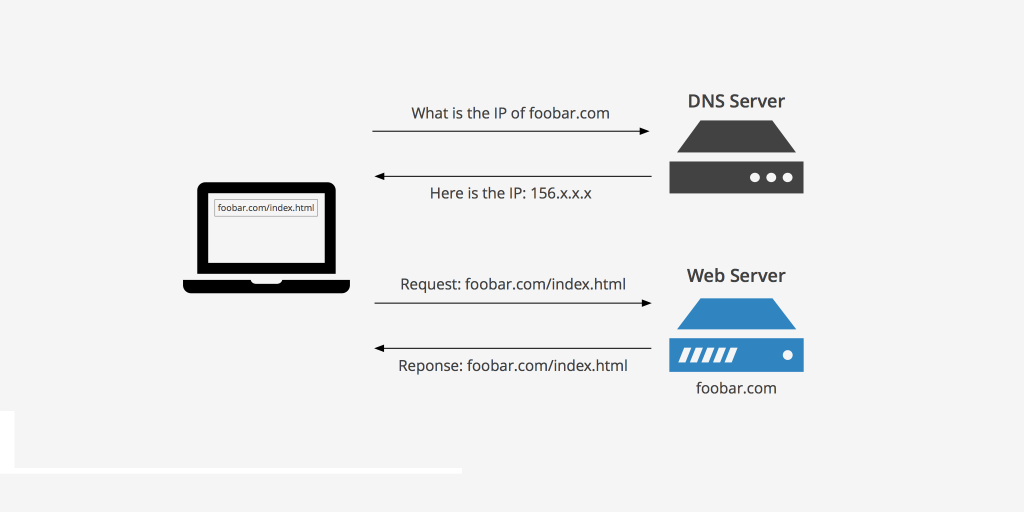
Table of Contents
How to Find My DNS Server IP Address
1. The /etc/resolv.conf file in Linux systems contains information about the DNS (Domain Name System) name servers and their configuration. It’s used by the system’s DNS resolver to translate human-readable domain names (like example.com) into IP addresses that computers use to communicate over a network.
Typically, the /etc/resolv.conf file might contain lines specifying the DNS servers used by the system. Here’s an example of what it might look like
To find out your DNS Server IP address, use the following cat command or less command.
cat /etc/resolv.confOR
less /etc/resolv.conf
In this example:
nameserver 8.8.8.8andnameserver 8.8.4.4are DNS servers provided by Google (8.8.8.8 and 8.8.4.4 are Google’s public DNS server addresses).- Lines starting with
#are comments in the file and are not interpreted by the system’s resolver.
Please note that the contents of the /etc/resolv.conf file can be automatically generated or managed by various network management tools, like NetworkManager or systemd-resolved, and may change dynamically based on the system’s network configuration.
If you make changes directly to /etc/resolv.conf, they might be overwritten by the system if the file is managed dynamically. It’s often recommended to use network management tools or configuration files associated with those tools to modify DNS settings to ensure that changes persist across reboots and network configurations.
2. Another way is to use the following grep command.
grep "nameserver" /etc/resolv.conf
3. In newer Linux distributions that use systemd, you can use the systemd-resolve command to check the DNS server.
systemd-resolve --status | grep "DNS Servers"4. If you’re using NetworkManager, you can use the nmcli command to get the DNS server information.
nmcli dev show | grep 'IP4.DNS'NetworkManager is a utility in Linux-based operating systems that manages network connections. It’s a tool that provides a consistent way to configure and manage networking interfaces, including wired, wireless, mobile broadband, and VPN connections.
NetworkManager provides a command-line interface (nmcli) to manage network configurations. This interface allows users to query the status, modify connections, and perform various network-related tasks from the terminal.
To interact with NetworkManager, you can use several tools:
- nmcli: Command-line tool to control NetworkManager.
- nm-connection-editor: GUI tool to create, edit, or delete network connections.
- nm-applet: The system tray applet for NetworkManager in desktop environments, allowing easy access to network settings.
NetworkManager simplifies network management on Linux systems, offering both command-line and graphical tools to configure and manage network connections, making it a versatile choice for handling various network setups and configurations.
How to Find My Website DNS Server IP Address
To find out a website DNS Server IP address, you can use the following dig command, which is used to query DNS information.
dig bestvpshosting.inSample Output

The output will provide you with a list of IP addresses for authoritative nameservers for your website (i.e., the DNS servers responsible for your domain).
Please note that the actual IP addresses you receive may vary depending on your website hosting provider or domain registrar.
If your website is using third-party DNS services like Cloudflare or Google Cloud DNS, the IP addresses will be specific to those services.