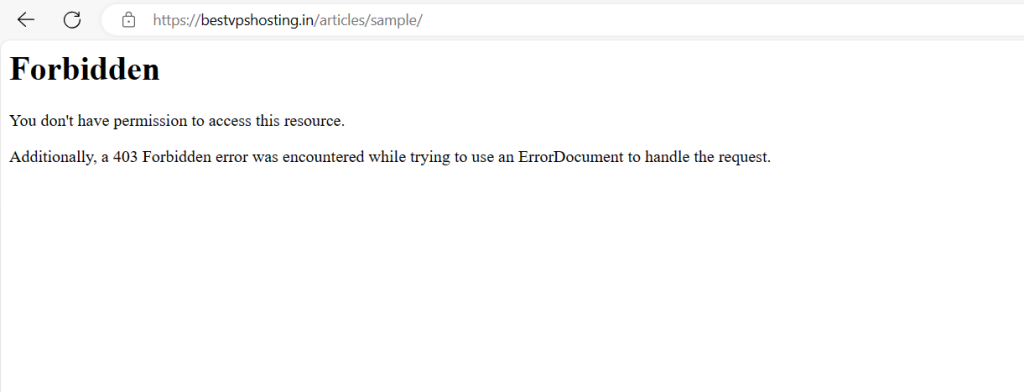
A “403 Forbidden” error is an HTTP status code that indicates the server understood the request, but it refuses to authorize it.
This error message is typically displayed when a user attempts to access a web page or resource that they don’t have permission to view.
Web servers commonly employ it to block unauthorized access to sensitive information or resources. A “403 Forbidden” response may occur when a user tries to access a webpage, file, or directory demanding special privileges.
This encompasses trying to enter a restricted website area without the right credentials or accessing a file protected from public viewing.
To resolve this error, the user typically needs to authenticate themselves by logging in with valid credentials or by obtaining the necessary authorization from the server’s administrators.
Table of Contents
CAUSES OF 403 FORBIDDEN ERROR
HTTP 403 forbidden errors often result from access misconfigurations on the user’s side, providing an opportunity for users to address the issue independently.
These errors stem from permission settings on files or folders, defining who can read, write, and execute them.
Herein, two possible scenarios arise: the site owner intentionally restricted your access or inaccurately set permissions.
Another potential source of the problem could involve corrupted .htaccess file parameters due to user changes. Thankfully, this issue can be easily resolved by creating a new server configuration file.
Beyond these typical reasons, several other potential reasons for the error include:
NO INDEX PAGE
The website’s primary page might not bear the names index.html or index.php.
PROBLEM WITH THE WORDPRESS PLUGIN
A 403 error could potentially be triggered if a WordPress plugin is misconfigured or conflicts with another.
INCORRECT IP ADDRESS
When the domain name connects to an outdated or erroneous IP address hosting a site that obstructs your entry.
MALWARE INTRUSION
A malware attack can persistently corrupt the .htaccess file, necessitating malware removal prior to file restoration.
FRESH WEB PAGE LINK
Alterations to a webpage’s link by the site administrator could render it inconsistent with the cached version.
NEW LINK TO PAGE
The website owner adjusts a page’s web address, causing it to differ from the saved version.
HOW TO FIX THE 403 ERROR
Below we’ve explained nine different ways to troubleshoot the error:
1. REFRESH THE PAGE AND VERIFY THE URL
At times, uncomplicated solutions can effectively tackle intricate issues. Try giving the page you’re having trouble accessing a simple refresh. It’s possible that this action may resolve the 403 error.
Additionally, it’s advisable to double-check the accuracy of the URL. If you’re trying to access a directory rather than a web page, there’s a possibility of encountering a 403 error. (e.g., www.example.com/folder/)
2. DEACTIVATE CDN TEMPORARILY
To resolve this issue, consider temporarily deactivating your CDN and verifying if it resolves the problem.
3. CHECK TO SEE IF HOTLINK PROTECTION IS MISCONFIGURED
Hotlinking occurs when an individual includes an image on their website, yet the link directs back to another person’s site. To counteract this, some individuals establish “hotlink protection” with their CDN or hosting provider.
Active hotlink protection typically generates a standard 403 Forbidden error. If you encounter an unwarranted 403 error, ensure that your hotlink protection is correctly configured.
4. DISCONNECT FROM YOUR VPN
Here’s another straightforward suggestion that could address this issue.
Certain websites restrict access for VPN users, which might explain why you’re encountering the 403 forbidden message.
To confirm this, disconnect from your VPN and attempt to access the site through an alternate method. Alternatively, consider switching to a different server within your VPN service.
5. USE THE SITECHECKER WEBSITE CRAWLER TOOL
The Sitechecker Website SEO Checker offers an extensive SEO audit report equipped with solutions and various tools tailored to your website. These tools include a website crawler, site monitoring tool, rank tracker, and more.
Regularly keeping an eye on your pages for 403 errors is crucial, and Sitechecker can help with this. It not only detects 403 errors but also identifies various other types of errors across your website.
6. REACH OUT TO THE HOSTING PROVIDER
If the preceding solutions haven’t resolved your problem, we suggest contacting your hosting provider. They are likely able to assist you in identifying the issue and restoring your access.
Reliable hosting providers like Squarebrothers offer 24/7 customer support via email, chat, and phone, ensuring best-in-class customer support.