In Linux, the terminal history refers to a record of commands that you have previously entered in a terminal session. This history is usually stored in a file, and you can clear it using various methods.
When you’re working with a web hosting environment, you might not have direct access to certain commands or configuration files, depending on the hosting provider and the level of access they grant you.
Clearing terminal history in Linux means removing the record of previously executed commands from the shell’s history. This action can be useful for privacy, security, or starting with a clean slate. Here are various methods to clear terminal history in Linux:
Clearing Current Session History:
Command: history -c
Description: This command clears the command history for the current terminal session. It removes the commands you’ve entered during the current session but doesn’t affect the history file.
Optional: history -w writes the changes to the history file, ensuring that they persist beyond the current session.
Clearing History File:
Command: echo > ~/.bash_history
Description: This command overwrites the content of the Bash history file with an empty string, effectively clearing all historical commands. It ensures that the next time you open a terminal, there is no command history from previous sessions.
Alternative: rm ~/.bash_history removes the history file entirely. A new history file is created when you start a new terminal session.
Combining Commands:
Command: history -c && history -w && echo > ~/.bash_history
Description: This sequence combines the clearing of the current session history, writing changes to the history file, and emptying the history file. It provides a comprehensive approach to clear both the in-session and stored command history.
Using Environment Variables:
Command: export HISTSIZE=0
Description: Setting the HISTSIZE environment variable to zero prevents commands from being stored in the history file for the current session. This approach is temporary and only affects the current terminal session.
Editing the Shell Configuration File:
Editing: You can edit the shell configuration file (e.g., ~/.bashrc or ~/.bash_profile) to modify history settings permanently. Adjusting or disabling history-related variables like HISTFILE and HISTSIZE can control the storage and retrieval of command history.
It’s essential to exercise caution when clearing terminal history, as it can affect your ability to recall and reuse commands. Additionally, changes may not take immediate effect, requiring a terminal restart for them to apply. Always consider the implications and use these commands judiciously.
Table of Contents
History Command to Clear the Terminal History
In Linux, the history command is used to display the command history of the current user in the terminal. However, the history command itself does not provide an option to clear the history. Instead, you can use the history command in combination with the -c option to clear the entire command history.
Here’s how you can do it:
Open a terminal.
Type the following command and press Enter:
history -c
This command will clear the entire command history for the current session.
Optionally, you can also use the history -w command to write the changes to the history file, if you want to make sure the changes are saved:
history -wKeep in mind that clearing the command history using history -c only affects the current session. The history file (~/.bash_history for Bash) will still contain the previous commands until you close the terminal session or log out. If you want to clear the history file as well, you can manually delete it or use the rm command:
Clearing history by editing the Bash History File
To clear the command history in Linux by editing the Bash history file, you can manually edit the history file associated with your shell. The default Bash history file is usually ~/.bash_history. Here are the steps to clear the history using this method:
Open a terminal.
Use a text editor (such as nano, vi, or gedit) to open the Bash history file:
vi ~/.bash_history
Output:
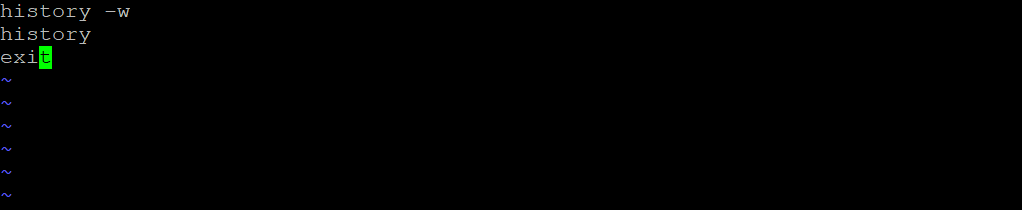
Delete all the contents of the file, so it becomes empty.
Save the changes and close the text editor.
Keep in mind that any changes made to the history file won’t affect the current session’s history until you close and reopen the terminal. If you want the changes to take effect immediately, you can also run the history -c command to clear the history for the current session, as mentioned in the previous response.
Clearing history without editing the Bash History File
Certainly! The echo > ~/.bash_history command is a concise way to clear the content of the Bash history file. Here are detailed steps explaining how this command works:
Open a Terminal:
Open a terminal on your Linux system. You can usually do this by searching for “Terminal” in your applications menu or by using a keyboard shortcut.
Navigate to Home Directory:
Ensure that you are in your home directory. You can use the cd command to navigate to your home directory:
cd ~Execute the Command:
Run the echo > ~/.bash_history command. This command uses the echo command to print an empty string (>) and then redirects (>) this output to the .bash_history file in your home directory:
echo > ~/.bash_history
This essentially overwrites the contents of the ~/.bash_history file with an empty string.
Verify the Changes:
Optionally, you can use a text editor or the cat command to verify that the contents of the .bash_history file have been cleared. For example:
cat ~/.bash_history
This should display nothing, indicating that the file is now empty.
Optional: Save the Changes to History File:
If you want to make sure the changes are saved, you can run the history -w command. This command writes the current command history to the history file:
history -wThis step is not strictly necessary, as the history file is automatically updated when you exit the terminal. However, running history -w ensures that the changes are immediately written to the file.
By following these steps, you effectively clear the content of the Bash history file, preventing any previously executed commands from being stored in the history.