
Email forwarders in cPanel allow you to automatically forward emails from one email address to another. This feature is particularly useful when you want to consolidate your email accounts or manage emails across multiple addresses without having to check each one individually.
In web hosting environments that utilize cPanel, email forwarders are a feature that allows you to automatically forward emails received by one email address to another email address. This feature is particularly handy for managing multiple email accounts or ensuring that emails sent to one address are received by another person or department.
Table of Contents
How email forwarders work in cPanel:
Forwarding Address: You specify an existing email address hosted on your cPanel account from which you want to forward emails.
Destination Address: You specify the email address(es) to which you want the incoming emails to be forwarded.
Routing: When an email is sent to the forwarding address, cPanel automatically redirects it to the designated destination address(es).
No Storage: Typically, email forwarders do not store copies of forwarded emails on the server. Instead, they simply redirect them to the specified destination(s).
Multiple Forwarders: You can set up multiple email forwarders for different email addresses and destinations as needed.
Management: cPanel provides an interface for managing email forwarders, allowing you to add, edit, or remove forwarders easily.
Email forwarders are commonly used for various purposes, including:
Redirecting emails from one personal email address to another (e.g., forwarding emails from a personal account to a work account).
Routing emails from a generic address (e.g., support@yourdomain.com) to specific team members.
Consolidating emails from multiple addresses into a single inbox for easier management.
Overall, email forwarders in cPanel offer flexibility and convenience in managing email communications, especially for individuals and organizations with multiple email addresses.
How to email forwarding in cPanel
In cPanel, you can set up email forwarders to automatically forward emails from one address to another. Here’s how you can do it:
Log in to cPanel: Go to your cPanel login page and enter your credentials to access your account.
Navigate to Email Forwarders: Once logged in, look for the “Email” section in cPanel. Within this section, you should find an option labeled “Forwarders” or “Forwarding.”
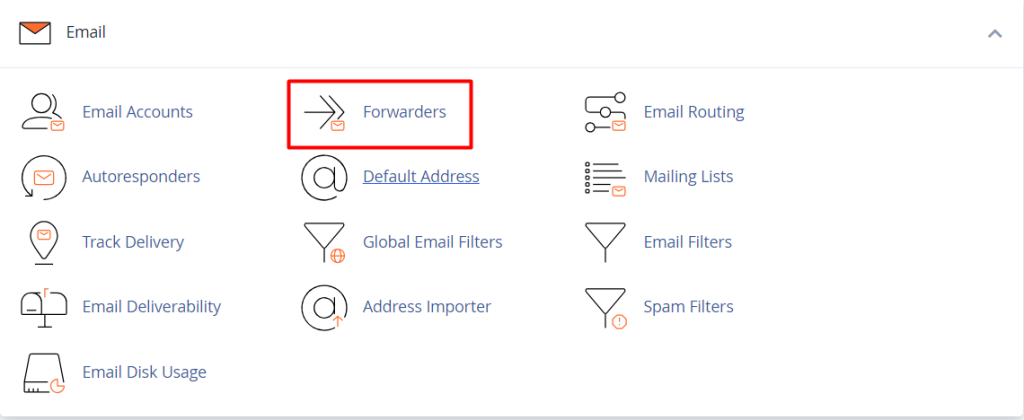
Create a New Forwarder: Click on the “Forwarders” or “Forwarding” option to enter the email forwarders management interface. Here, you’ll see a list of any existing forwarders and options to create new ones.
Add Forwarder: To create a new forwarder, click on the “Add Forwarder” button or link.
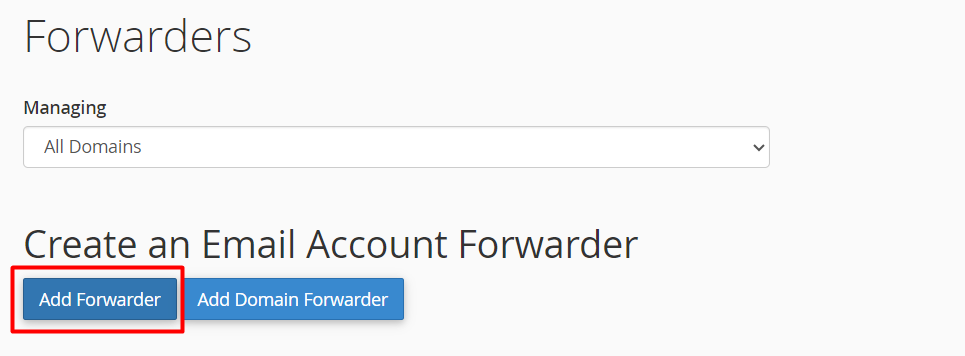
Enter Forwarding Details: In the form that appears, you’ll need to provide the following details:
Address to Forward: Enter the email address from which you want to forward emails.
Destination Address: Specify the email address to which you want to forward incoming emails.
Domain: If you have multiple domains associated with your cPanel account, select the appropriate domain from the dropdown menu.
Optional Settings: Depending on your requirements, you may have additional options such as choosing whether to discard the emails after forwarding, or to forward them to multiple addresses.
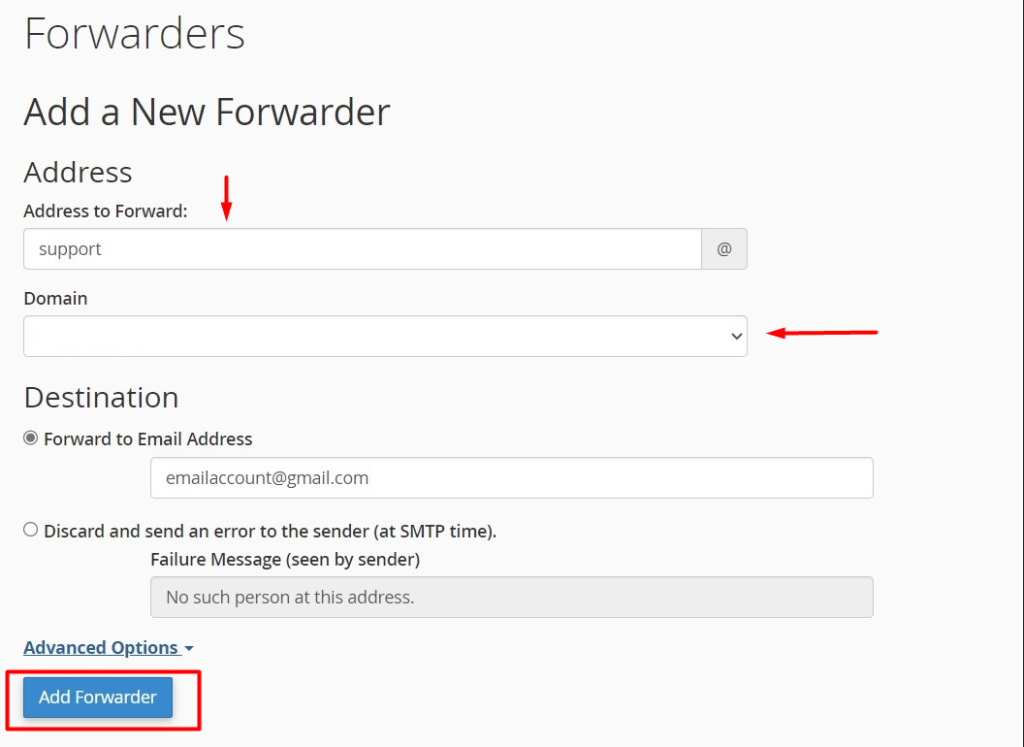
Save Forwarder: Once you’ve entered the necessary information, click the “Add Forwarder” button or similar option to save your settings.
Test Forwarding: It’s a good idea to send a test email to the address you set up for forwarding to ensure that emails are being forwarded correctly.
Manage Forwarders: You can manage your email forwarders at any time by returning to the “Forwarders” or “Forwarding” section in cPanel. Here, you can edit, delete, or add new forwarders as needed.
By setting up email forwarders in cPanel, you can easily manage email routing and ensure that messages sent to specific addresses are automatically forwarded to the appropriate recipients.