Scheduling cPanel backups in WHM (Web Host Manager) involves configuring automatic backup settings for cPanel accounts on your server.
These backups can include files, databases, email configurations, and other relevant data.
cPanel backups in WHM (Web Host Manager) refer to the process of creating and managing backups for cPanel accounts on a web hosting server. cPanel is a popular web hosting control panel that allows users to manage various aspects of their hosting accounts, including website files, databases, email accounts, and more.
WHM is the administrative interface for managing the server itself, and it provides tools for managing multiple cPanel accounts on the server.
The cPanel backups in WHM allow server administrators to schedule automatic backups of cPanel accounts, ensuring that critical data is regularly backed up and can be restored in case of accidental data loss, server failure, or other emergencies.
Table of Contents
Key features of cPanel backups
Key features of cPanel backups in WHM include:
- Backup Types: WHM allows administrators to choose different types of backups, including full backups (containing all data), incremental backups (only changes since the last backup), and compressed backups (reducing storage space).
- Backup Destinations: Administrators can specify where the backups should be stored, such as on the local server, remote FTP server, Amazon S3, or other supported destinations.
- Backup Retention: WHM enables administrators to set retention policies to determine how long backups should be kept before they are automatically deleted or overwritten by newer backups.
- Backup Scheduling: WHM allows administrators to schedule backups to run automatically at specific intervals, such as daily, weekly, or monthly, ensuring that backups are performed regularly without manual intervention.
- Customization Options: Administrators can customize backup settings for individual cPanel accounts or apply global settings that affect all accounts on the server.
- Monitoring and Notifications: WHM provides tools for monitoring backup progress and status, as well as options to receive notifications via email or other methods in case of backup failures or other issues.
Overall, cPanel backups in WHM are essential for ensuring the safety and integrity of data hosted on web servers, providing peace of mind to both server administrators and website owners.
Here’s a detailed guide on how to schedule cPanel backups in WHM.
Scheduling cPanel backups in WHM
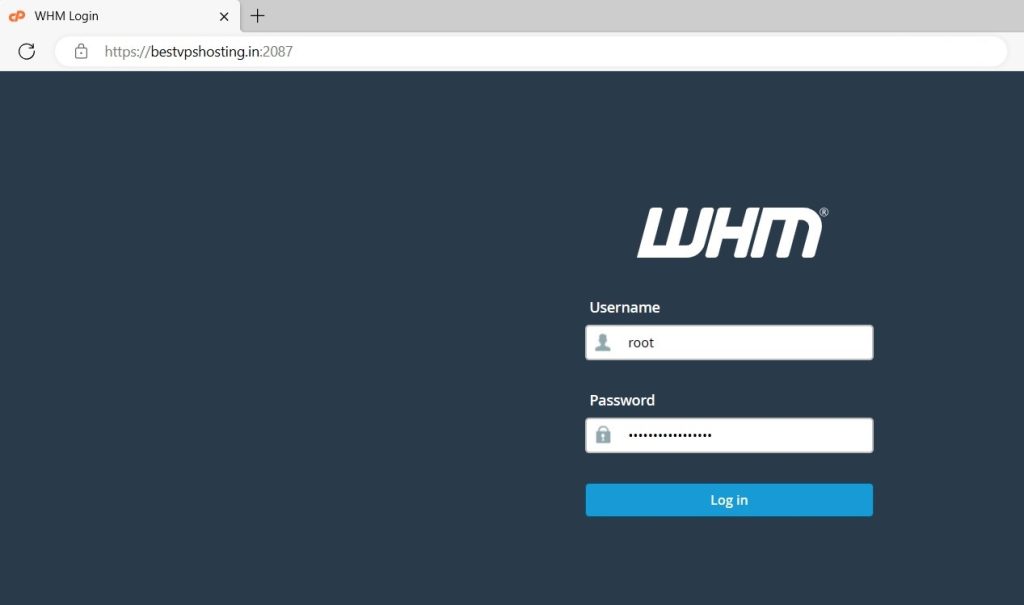
To schedule cPanel backups in WHM (Web Host Manager), follow these steps:
Access WHM: Log in to WHM with your administrator credentials.
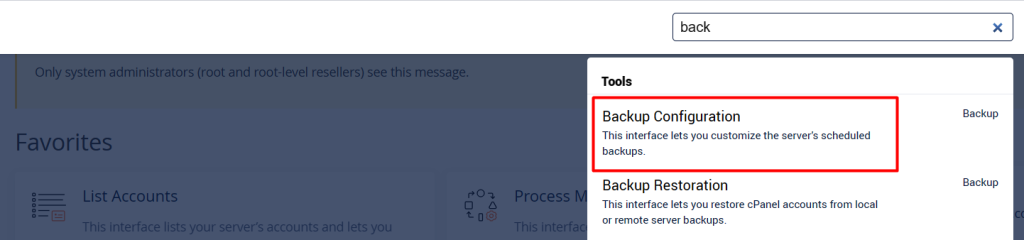
Navigate to Backup Configuration:
- Once logged in, you can find the “Backup Configuration” option by either using the search bar or locating it under the “Backup” section.
Configure Backup Settings:
- In the Backup Configuration interface, you’ll find various settings related to backups. Configure them according to your preferences. These settings include:
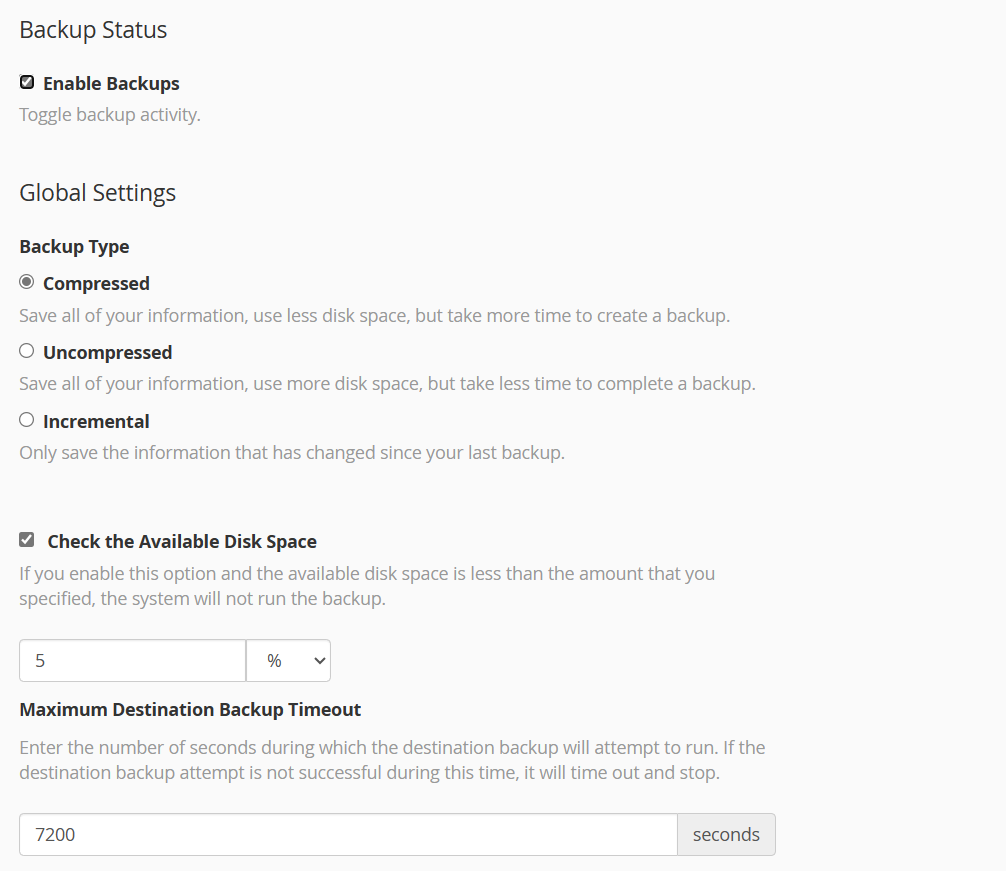
- Backup Type: Select the backup type (compressed, incremental, etc.).
- Backup Destination: Choose where you want to store the backups (local or remote).
- Backup Retention: Set how long you want to keep the backups.
- Backup Schedule: Define when you want the backups to run (daily, weekly, monthly).
- Additional Settings: Other options like enabling notifications, excluding specific directories, etc.
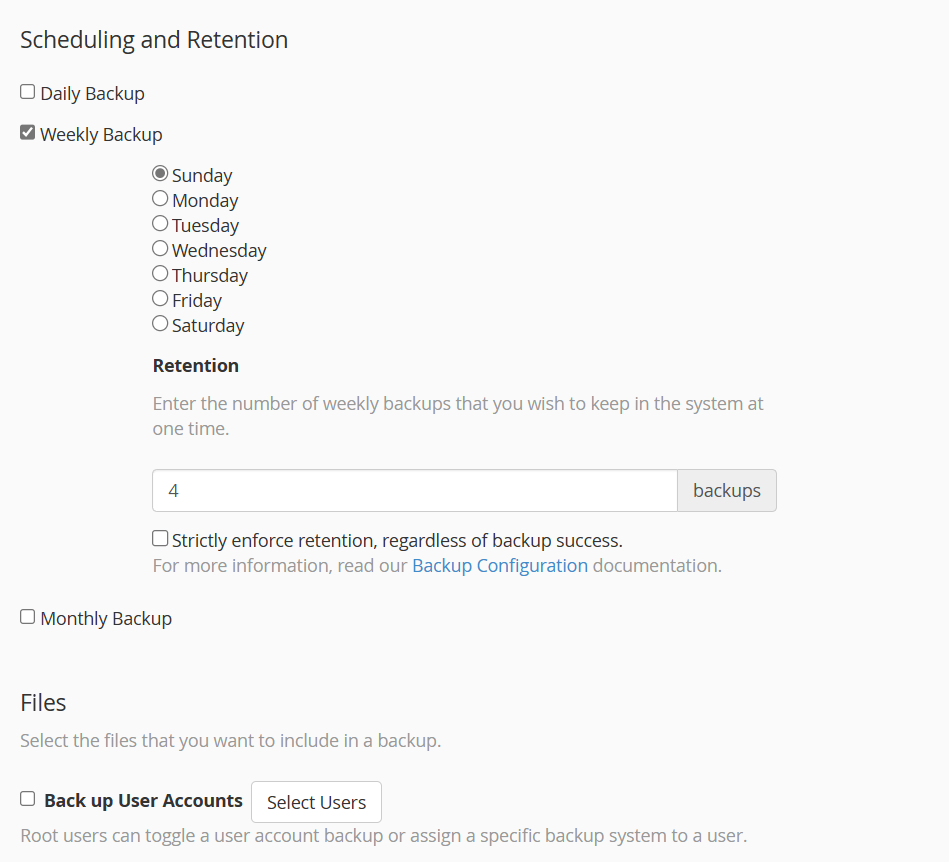
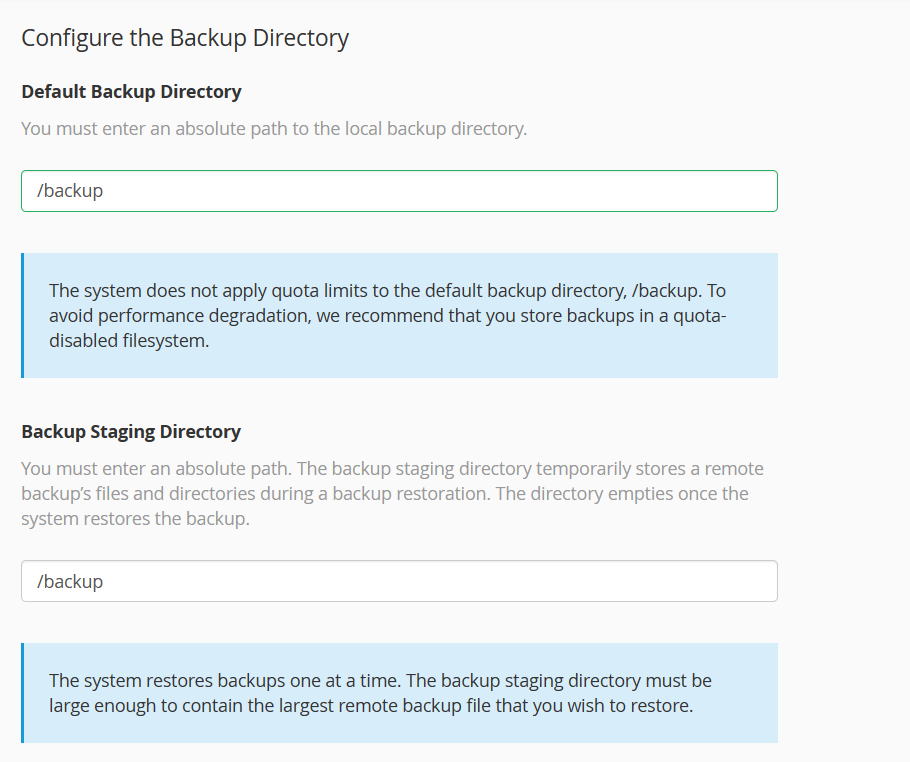
Now, you can choose the default backup directory
Save Configuration: After configuring the settings, make sure to save your changes.
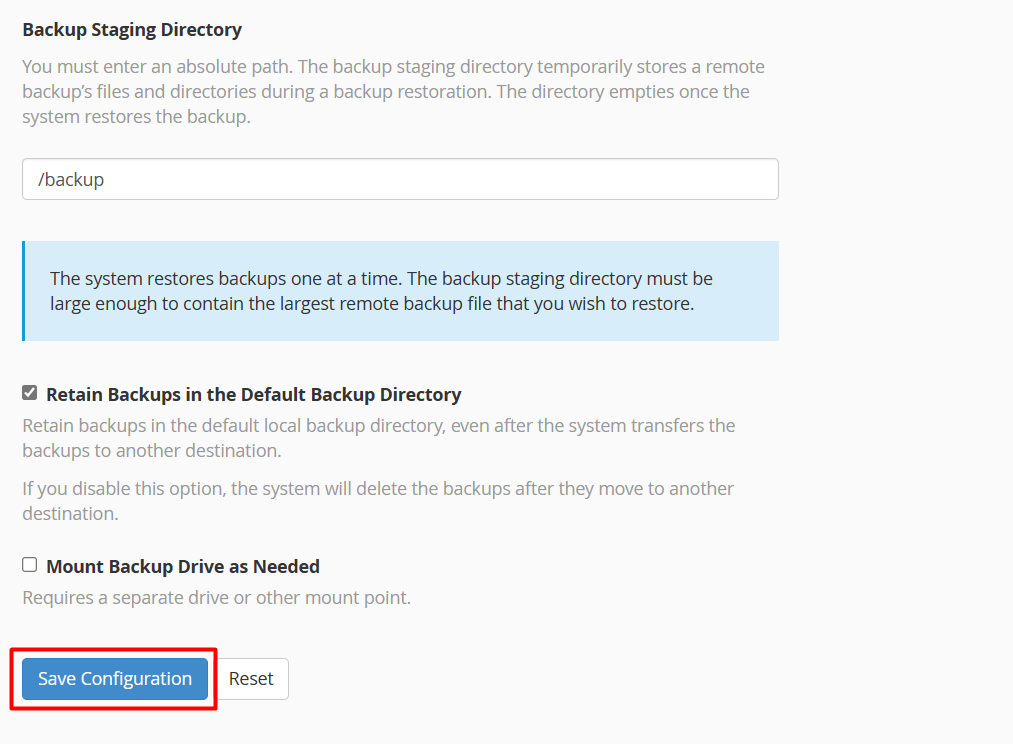
Verify Configuration: It’s advisable to review your configuration settings to ensure they match your requirements.
Initiate Backup: Once the configuration is saved, the backups will run according to the schedule you’ve set.
Monitor Backup Status: You can monitor the backup progress and status in WHM to ensure that backups are being executed as scheduled and that there are no errors.
Remember to periodically review your backup strategy to ensure it meets your needs and that you’re able to recover data effectively if needed. Additionally, it’s a good practice to periodically test your backups to ensure they are viable for restoration.