


ERR TOO MANY REDIRECTS
The ERR TOO MANY REDIRECTS error, also known as a redirect loop, occurs when a web browser is caught in an infinite loop of redirections between different URLs. This means that the website you are trying to access is repeatedly redirecting the browser to another URL, and this process continues indefinitely until the browser halts the process and displays the error message.
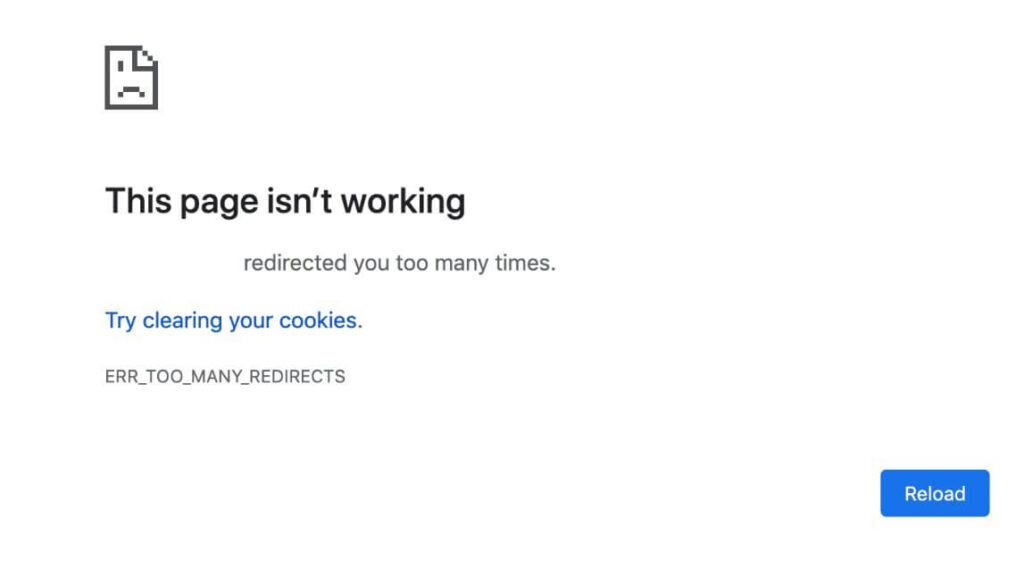
Table of Contents
What is ERR_TOO_MANY_REDIRECTS error
The ERR_too many redirects error in WordPress is a common issue that typically results from a misconfiguration in the website’s URL settings or conflicts with plugins. Here are several steps to troubleshoot and fix this error:
1. Clear Browser Cookies and Cache
Start by clearing your browser cookies and cache. Sometimes, outdated or corrupted cookies can cause redirect loops.
2. Check WordPress URL Settings
Ensure that the URL settings in your WordPress dashboard are correct.
- Go to Settings > General.
- Verify that the WordPress Address (URL) and Site Address (URL) are correctly set. They should match and use the correct protocol (http or https).
3. Check .htaccess File
The .htaccess file can sometimes cause redirect issues. To check this:
- Access your website files via FTP or a file manager.
- Locate the
.htaccessfile in the root directory of your WordPress installation. - Rename the
.htaccessfile to something like.htaccess_backupto disable it. - Try accessing your site again. If it works, generate a new
.htaccessfile by going to Settings > Permalinks and clicking Save Changes.
4. Disable Plugins
A plugin conflict might be causing the redirect loop. To identify the problematic plugin:
- Access your website files via FTP or a file manager.
- Navigate to the
wp-contentdirectory and rename thepluginsfolder to something likeplugins_backupto deactivate all plugins. - Check if your site loads correctly. If it does, rename the folder back to
pluginsand reactivate each plugin one by one from the WordPress dashboard to identify the culprit.
5. Check Theme
Sometimes, the theme can cause the error. To check this:
- Access your website files via FTP or a file manager.
- Navigate to the
wp-content/themesdirectory and rename your active theme’s folder to something else (e.g.,theme_backup). - This will force WordPress to revert to a default theme like Twenty Twenty-One. Check if your site loads correctly.
- If it does, the issue is with your theme. You might need to update or replace it.
6. Configure SSL Settings
Incorrect SSL settings can lead to redirect loops, especially if you’ve recently migrated from HTTP to HTTPS.
- Ensure that your SSL certificate is correctly installed and configured.
- Use the Really Simple SSL plugin to handle SSL configurations automatically.
7. Define Site and Home URL in wp-config.php
You can explicitly define the site URL and home URL in your wp-config.php file to override any incorrect settings.
- Access your website files via FTP or a file manager.
- Edit the
wp-config.phpfile and add the following lines (replacehttps://yourdomain.comwith your actual site URL):phpCopy codedefine('WP_HOME', 'https://yourdomain.com'); define('WP_SITEURL', 'https://yourdomain.com'); - Save the file and try accessing your site.
8. Server Configuration
Sometimes, server-level configurations (like those in the web server’s configuration files) can cause redirect loops. Check with your hosting provider to ensure that there are no server-level redirects in place.
9. WordPress Address and Site Address in Database
If you can’t access your WordPress dashboard, you can change the site URL directly in the database:
- Access your database using phpMyAdmin or a similar tool.
- Find the
wp_optionstable. - Locate the
siteurlandhomerows and ensure their values are correct.
Conclusion
By following these steps, you should be able to identify and resolve the ERR_TOO_MANY_REDIRECTS error in WordPress. Start with the simpler solutions (clearing cache and cookies, checking URL settings) and proceed to more advanced troubleshooting (disabling plugins, checking theme and server configurations) as needed.


